
 85243 85243 |
 35212 35212 |
|
|
||
|
|
|||||||
| Welcome to the Exploding Garrmondo Weiner Interactive Swiss Army Penis. |
|
GFF is a community of gaming and music enthusiasts. We have a team of dedicated moderators, constant member-organized activities, and plenty of custom features, including our unique journal system. If this is your first visit, be sure to check out the FAQ or our GFWiki. You will have to register before you can post. Membership is completely free (and gets rid of the pesky advertisement unit underneath this message).
|
 |
|
|
Thread Tools |
 Member 222 Level 36.56 Mar 2006 
|
The easiest and cheapest way to do this will be with a crossover cable. Please note that the cable that connects your modem to your PC is not a crossover cable, and will not work for this. Once you get a crossover cable {the one I linked you is 2 american dollars, so I guess one british pound?}, you have no need to go make any new connections or anything, because your connections are already made, all you have to do is a couple of simple changes to them.
First, Start > Settings > Control Panel > Network Connections. Then right click on your Local Area connection and click properties. In the dialog box that pops up, in the middle of the screen you will have several items that you can select. Choose Internet Protocol (TCP/IP) and click Properties 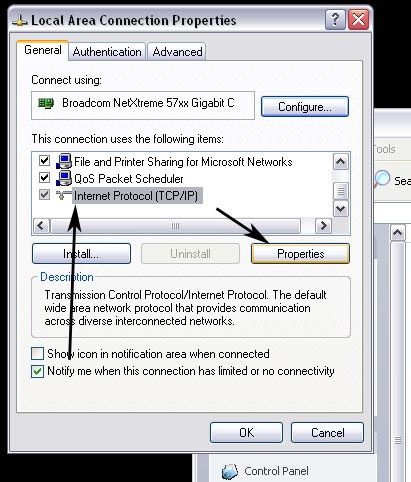 Then in the TCP/IP properties dialog box, choose to "Use the following IP address". On one PC, set it for something like 192.168.2.1 and on the other set it to 192.168.2.2. Subnet mask leave at 255.255.255.0. Default gateway can be left blank for our purposes. Click OK and then OK on the Local Area connection properties box as well. 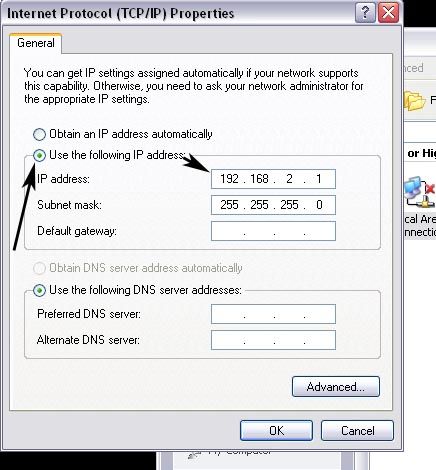 Once this is done and you have the crossover cable connected to both PCs, you're ready to start transferring files. The only software we're going to be using here is Windows Explorer {convenient isn't it?}. Because I'm such a nice guy, I will walk you through this without even setting up complex network shares and whatnot. First off, you may need to know where all of your files that you want moved are located. If they are in the My Documents folder, then this will be easy. If they are scattered around, it will still be easy, but just not as quick. I don't know how your desktop's hard drive is partioned or if there are multiple drives with the second drive used for file storage. For this I will assume that you have a single partition, single drive setup. Go ahead and open up Windows Explorer on your laptop and in the address bar, type "\\desktopPCname\c$" without the quotes. Remember, those are backslashes {the one above the enter key on most keyboards}. You will be prompted to sign in with a username and password. For the username, type "\\desktopPCname\administrator" and for the password, type the desktop PC's administrator password. If there is no admin password, leave it blank. Click OK. 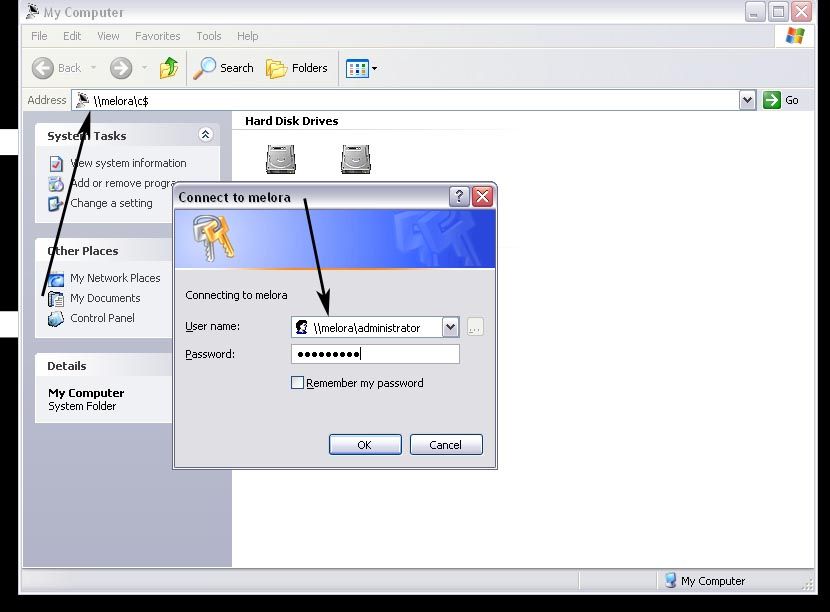 Now, you get to navigate to the files that you want moved to the laptop. If they are in the My Documents folder, just navigate to that folder. Since you're in \\desktopPCname\c$ you are in the root of the C drive on that pc. Go to Documents and Settings, then to the username where all of your documents are stored, then you will see a folder called My Documents. Go ahead and enter this folder. Select all of the files and folders that you want on the laptop, do either ctrl+c {which copies}, and then open up another Windows Explorer windows, go to My Documents on the laptop, ctrl+v {paste} OR open the second Windows Explorer window, navigate to the folder where you want to store all of these files, then switch back to the first Explorer windows, select the files and folders you want to keep, and drag them over into the second explorer window. File should start moving to the laptop, and depending on my much data it is, this could take a while. Go grab a drink and a snack. When the transfer finishes, close out the explorer windows, unhook your cable, and then go back to your Local Area connection properties on both computers and set the IP address back to "Obtain an IP address automatically". Jam it back in, in the dark. I didn't say I wouldn't go fishin' with the man.
All I'm sayin' is, if he comes near me, I'll put him in the wall. |
Member 222 Level 36.56 Mar 2006
|
Are you sure that you got a crossover cable? Crossover cables are different from standard ethernet cables.
There's nowhere I can't reach. I didn't say I wouldn't go fishin' with the man.
All I'm sayin' is, if he comes near me, I'll put him in the wall. |
|
|
 Similar Threads
|
||||
| Thread | Thread Starter | Forum | Replies | Last Post |
| For those who still don't know what Replaygain is... | Kaiten | Behind the Music | 6 | Mar 10, 2006 10:23 PM |


 russ
russ